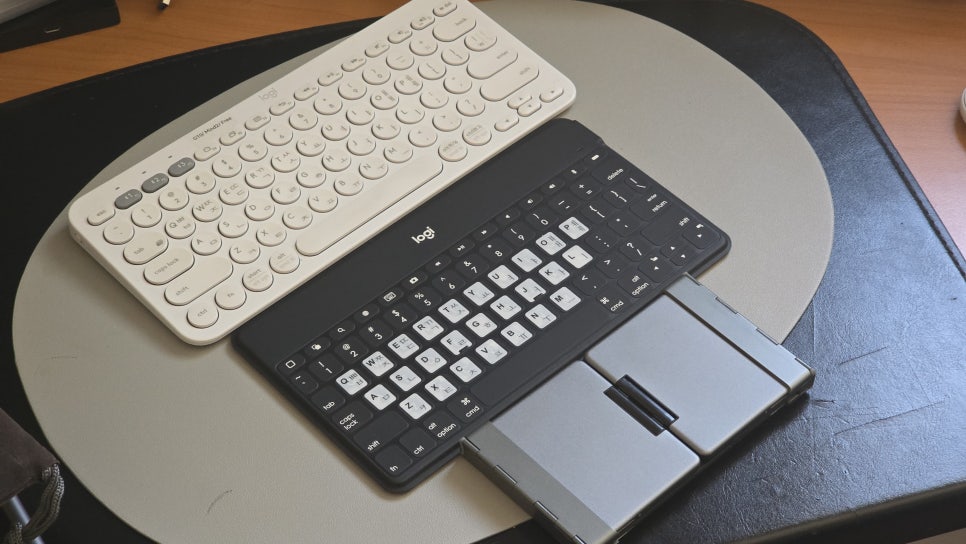
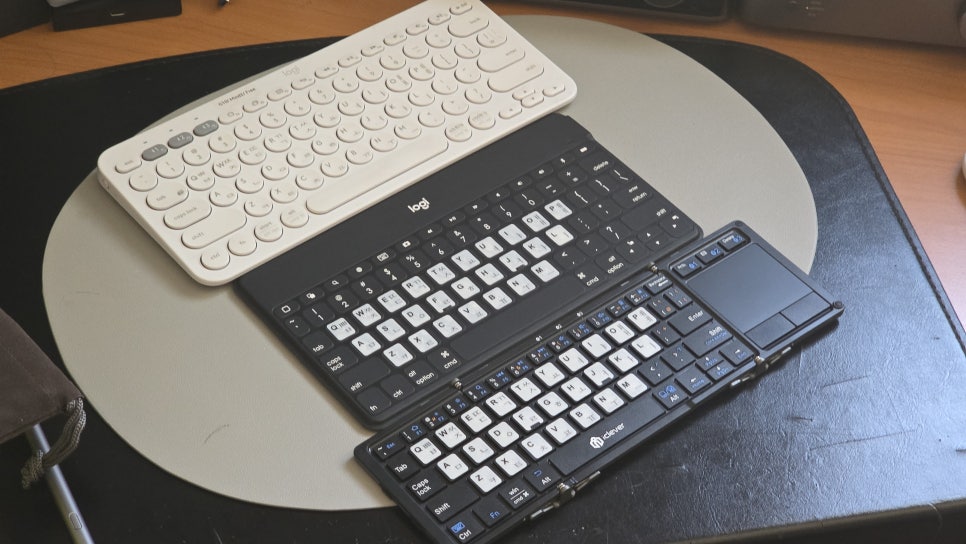
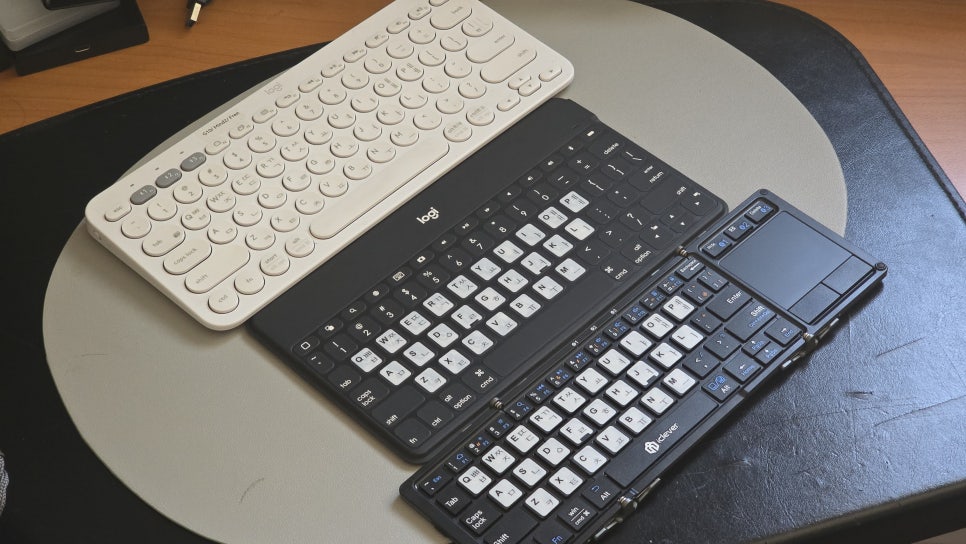
I looked for the most compact folding keyboard that would be convenient to carry while traveling or on the go.
The conditions I was looking for were as follows:
- A folding keyboard with a compact size
- Tenkeyless - I almost never use a numeric keypad.
- A touchpad function - so I would not need to bring a separate mouse in a mini PC environment that does not support a touch screen
Based on the above conditions, let me introduce the iClever IC-BK08, a tenkeyless folding wireless keyboard.
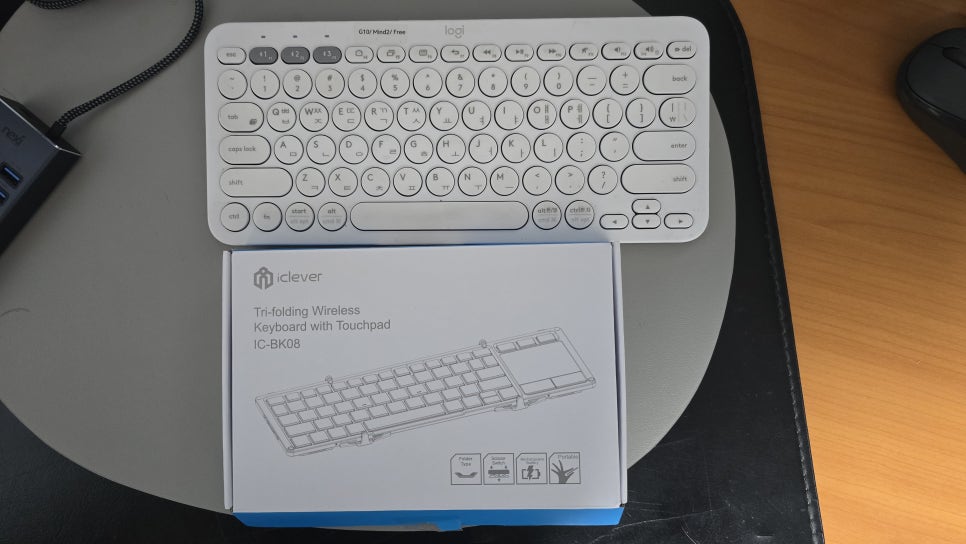
Size comparison between the Logitech K-380 keyboard I had been using and the iClever product packaging box
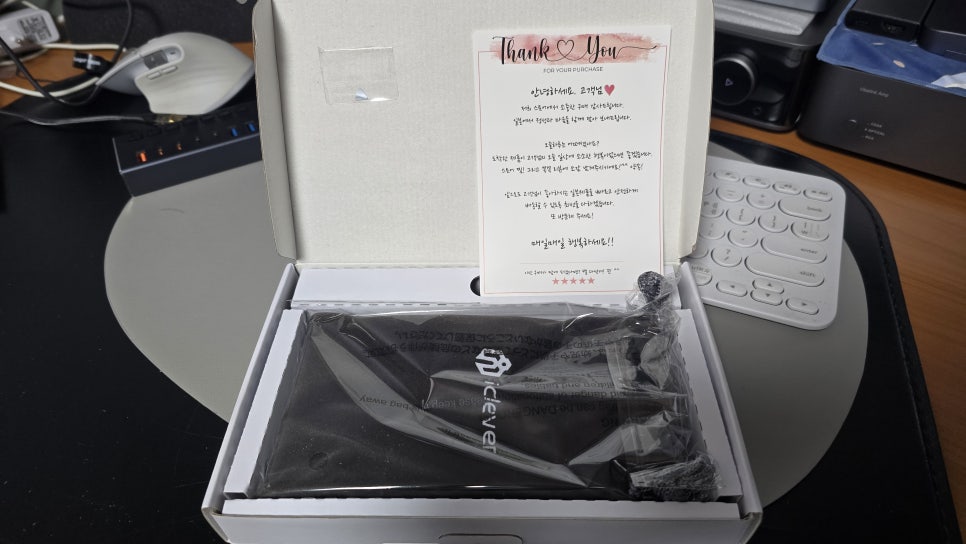
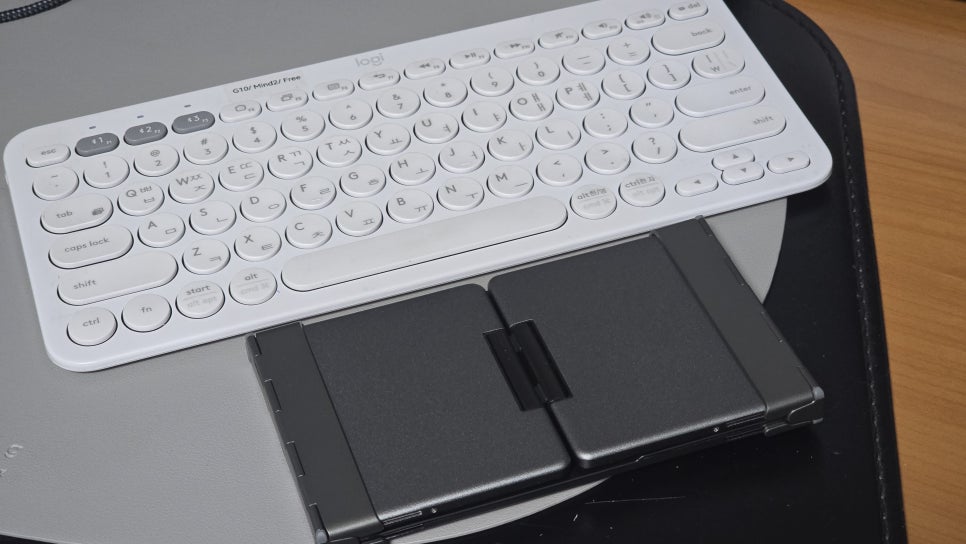
This is a size comparison between the Logitech K380 keyboard and the folded iClever BK08 keyboard.
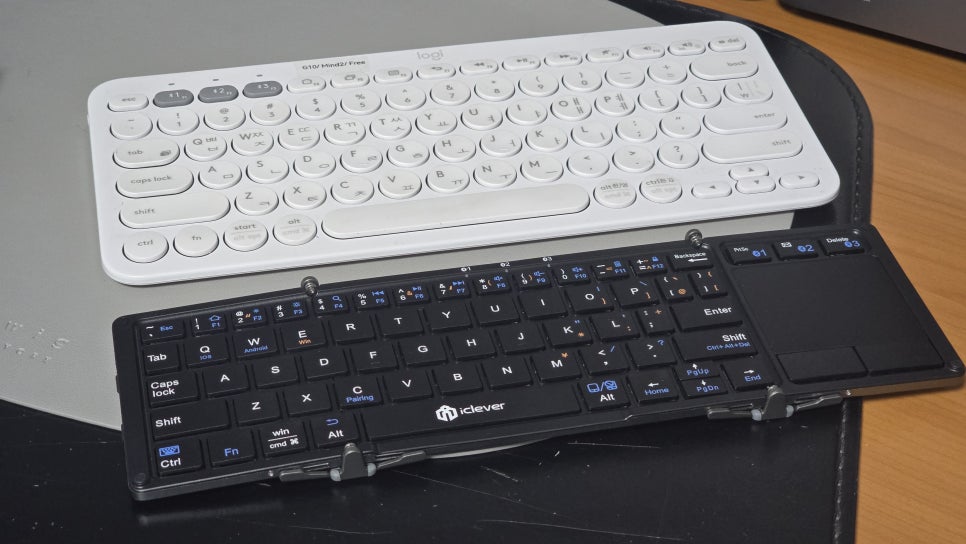
This is a size comparison between the Logitech K380 keyboard and the iClever BK08 keyboard in the unfolded state.
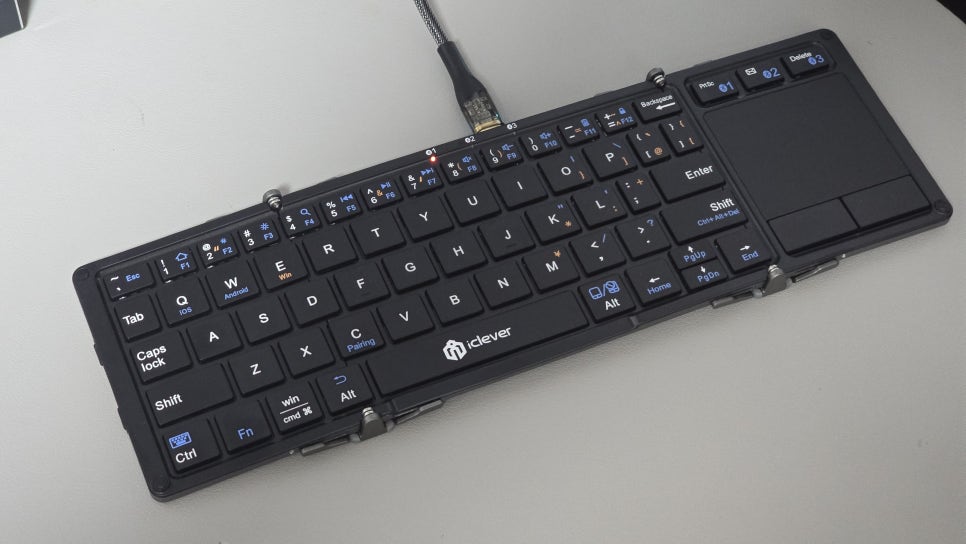
It charges via USB Type C.
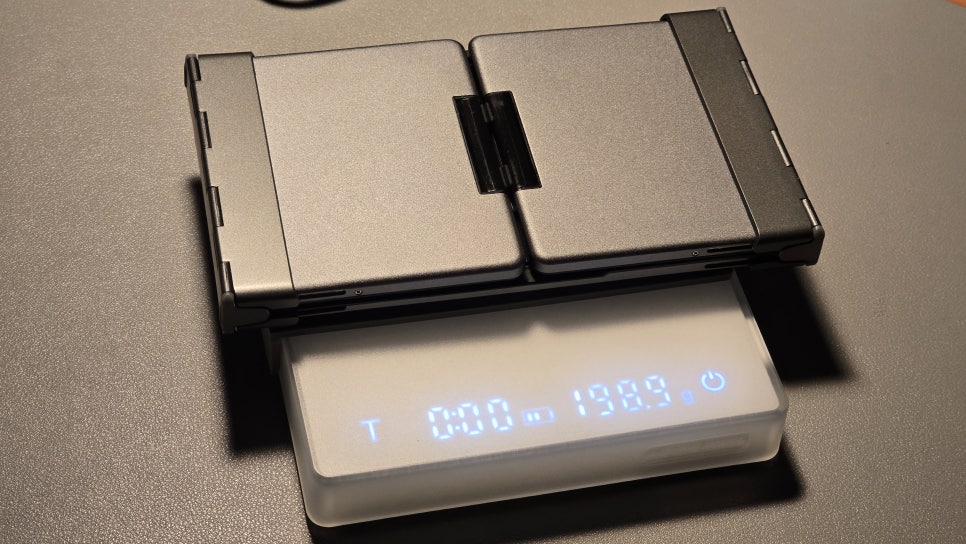
The keyboard itself weighs about 199 grams.
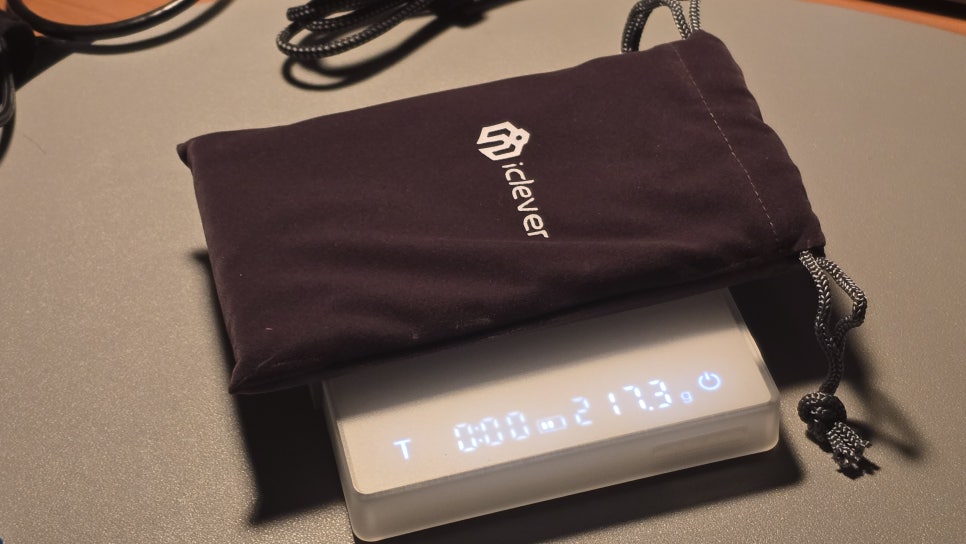
When stored in the pouch, it weighs about 217 grams.
This product is a three-fold keyboard with a built-in touchpad, making it a model that offers both portability and functionality.
I will introduce the detailed specifications and key usage methods.
- Main Specifications (Specification)
| Category | Details |
|---|
| Connection method | Bluetooth 3.0 / 5.1 (varies by version) |
| Number of devices | Supports multi-pairing for up to 3 devices |
| Size | When unfolded: approx. $278 \times 90 \times 6$ mm / When folded: approx. $159 \times 90 \times 18$ mm |
| Weight | Approx. 220 g (about the weight of one smartphone) |
| Battery | 210 mAh lithium battery (about 60 hours of continuous use on a full charge) |
| Charging method | Micro USB or USB-C (varies by production period) |
| Features | Built-in high-sensitivity touchpad, aluminum alloy case, balance stand included |
- Recently, it has been released with USB Type C charging.
- Basic Usage (How to Use)
① Power on/off
-
Turn on: When you unfold the keyboard, it turns on automatically. (The top LED lights blue for 3 to 5 seconds.)
-
Turn off: When you fold the keyboard again, the power is cut off.
② Bluetooth pairing (connection)
-
Select channel: While holding down the Fn key, press Q (No. 1), W (No. 2), or E (No. 3) to choose the channel you want to connect.
-
Enter pairing mode: Press and hold Fn + C (the key marked Pairing) for 3 to 5 seconds. The LED blinks blue rapidly.
-
Connect the device: In the Bluetooth settings of the device you want to use (smartphone, tablet, etc.), select "iClever IC-BK08 Keyboard" to complete the connection.
③ Operating system (OS) optimization
After connecting, you need to press the key below according to the device you are using so that Korean input and function keys work properly.
-
Android: Fn + Q
-
Windows: Fn + W
-
iOS / Mac: Fn + E
④ How to switch between Korean and English
The shortcut for switching between Korean and English may differ depending on the OS.
-
Android: Shift + Space or Ctrl + Space
-
iOS (iPad/iPhone): Caps Lock or Ctrl + Space
-
Windows: Korean/English key or Alt + Shift
- Useful tips
-
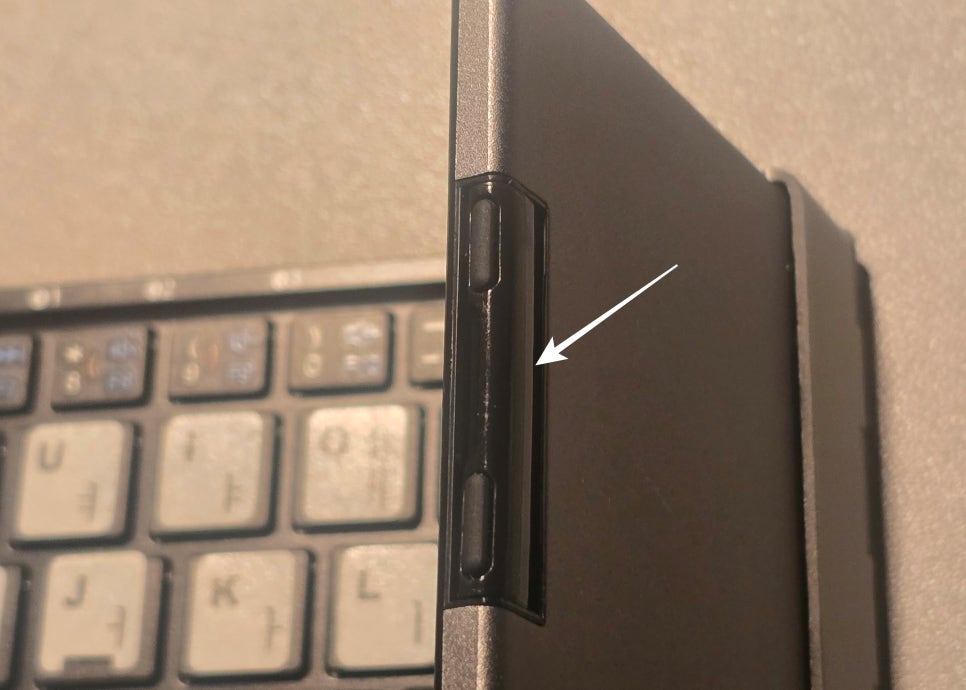
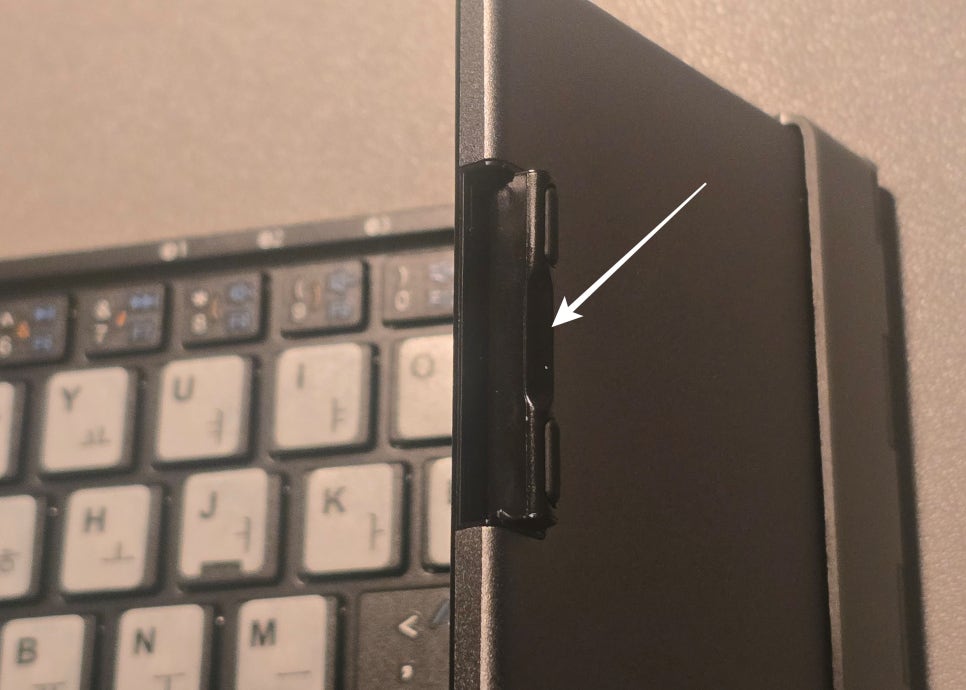
Balance stand: There is a small wing-like stand at the bottom of both ends of the keyboard. If you unfold it, the keyboard stays more stable while typing and does not wobble.
-
Touchpad disable: If the touchpad gets in the way while typing, you can turn the touchpad off or on by pressing Fn + F11. (※ Touchpad support may vary depending on the iOS version and device.)
-
Sleep mode: If there is no input for 30 minutes, it automatically enters sleep mode. Press any key and wait 2 to 3 seconds to reconnect.
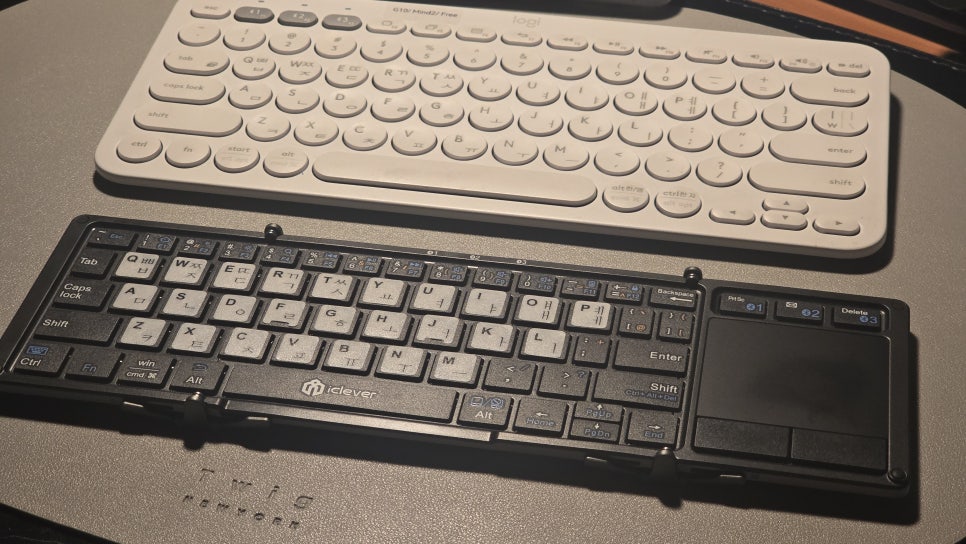
Tips for using the touchpad
The iClever BK08’s touchpad is small, but it supports a variety of multi-touch gestures, so it becomes very convenient once you get used to it. Its behavior differs slightly depending on the connected OS (Windows, Android, iOS), so please refer to the following.
- Basic mouse actions (common)
These are the most commonly used basic actions.
- Click (left click): Tap lightly once with one finger
- Right click: Tap once with two fingers at the same time (based on Windows)
- Drag: Double-tap quickly with one finger, then move without lifting it
- Scroll: Place two fingers on the pad and swipe up/down or left/right
- Gesture differences by operating system (OS)
BK08 touchpad operation is optimized according to the OS settings of the connected device (Fn + Q/W/E).
Windows (Fn + W)
- Two-finger zoom in/out: Bring two fingers together or spread them apart (Pinch to Zoom)
- Show desktop: Swipe down with three fingers
- Switch windows (Alt+Tab): Swipe three fingers left or right
Android (Fn + Q)
- Back: Two-finger click usually performs the "Back" function.
- Scroll: Swipe the screen with two fingers (support varies by app)
iOS/iPadOS (Fn + E)
Note: Some very old models or early manuals may say that iOS is not supported, but starting with iOS 13/iPadOS 13.4, touchpad support is officially available.
- Setup required: Go to Settings > Accessibility > Touch and turn on AssistiveTouch so that the mouse cursor appears.
- Go to Home screen: Swipe up with three fingers
- Touchpad on/off (to prevent accidental input)
If your palm keeps touching the touchpad while typing and the cursor jumps around, you can temporarily turn the function off.
- Disable/enable: Fn + Right Alt (or Fn + F11 on some models)
- Most BK08 models have a touchpad-shaped icon printed on the right Alt key.
- Usage tip: Make use of the balance stand
If the keyboard feels like it tilts to one side when pressing the touchpad, be sure to unfold the hidden "balance stand (small wings)" at the bottom of both ends of the keyboard. It makes touchpad use much more stable.
Below are photos for various size comparisons.
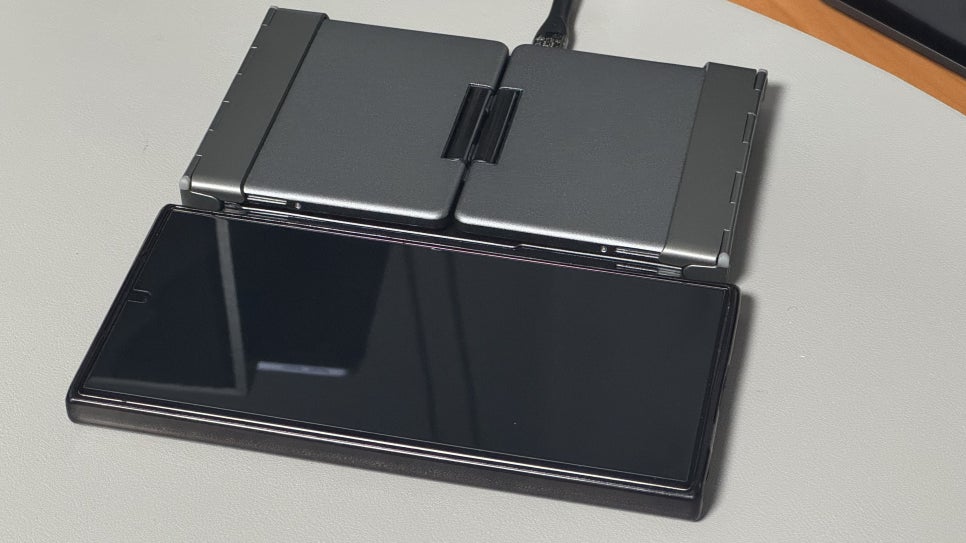
Size comparison with the Galaxy S24 Ultra
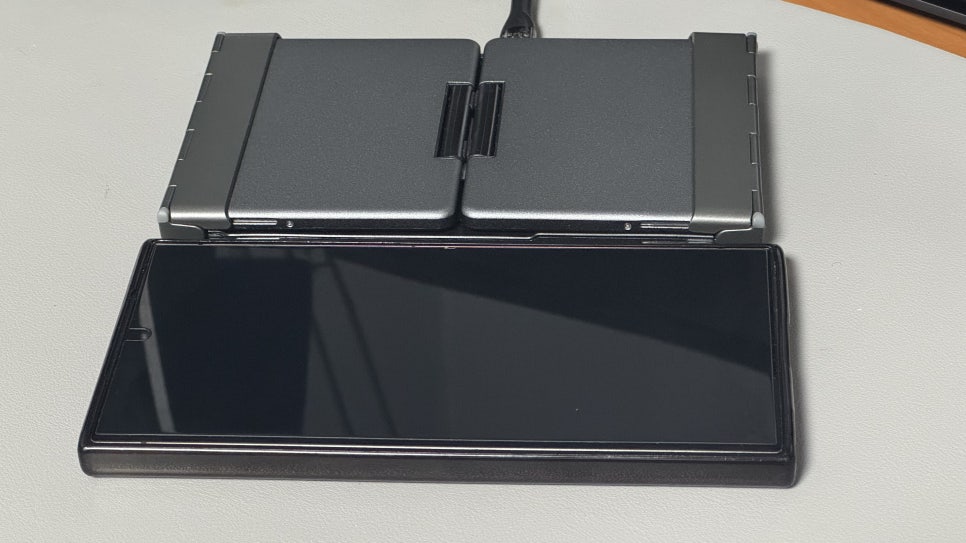
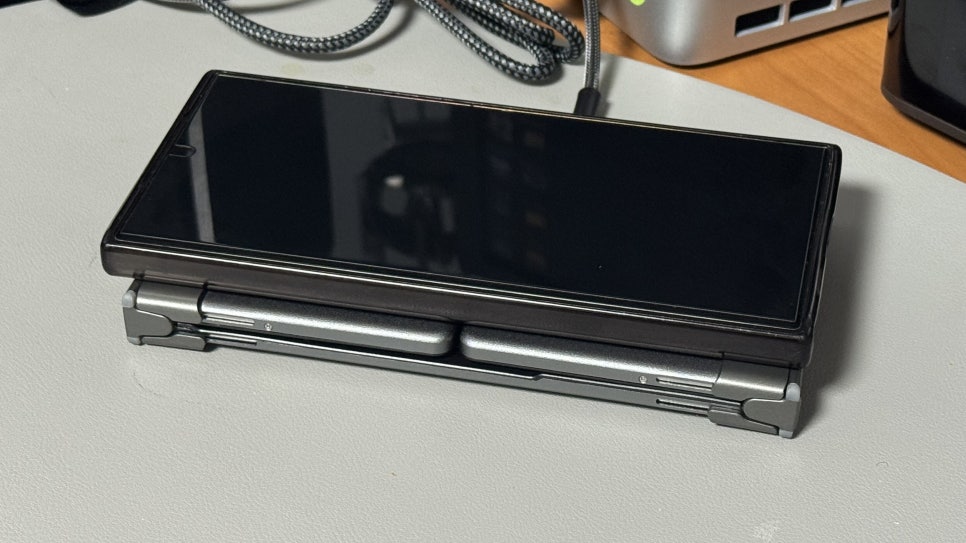
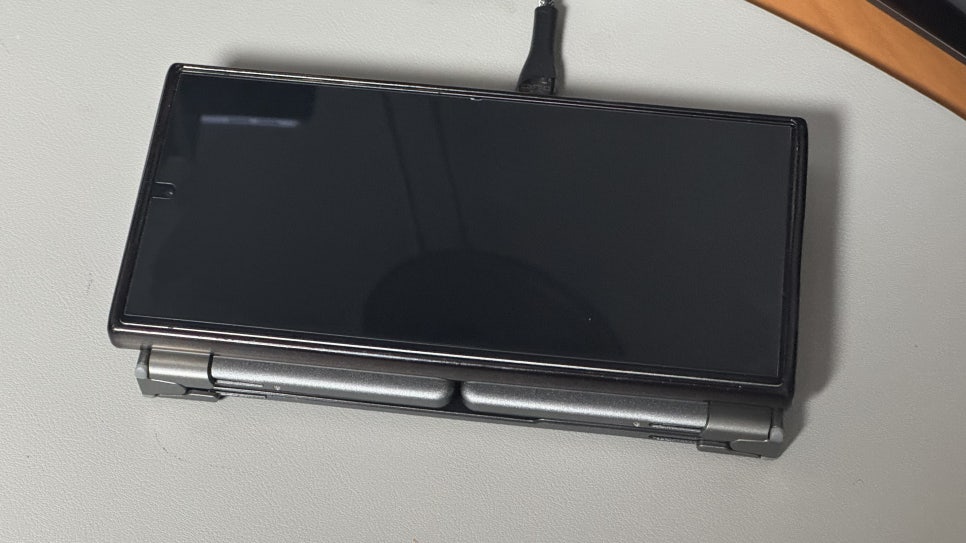
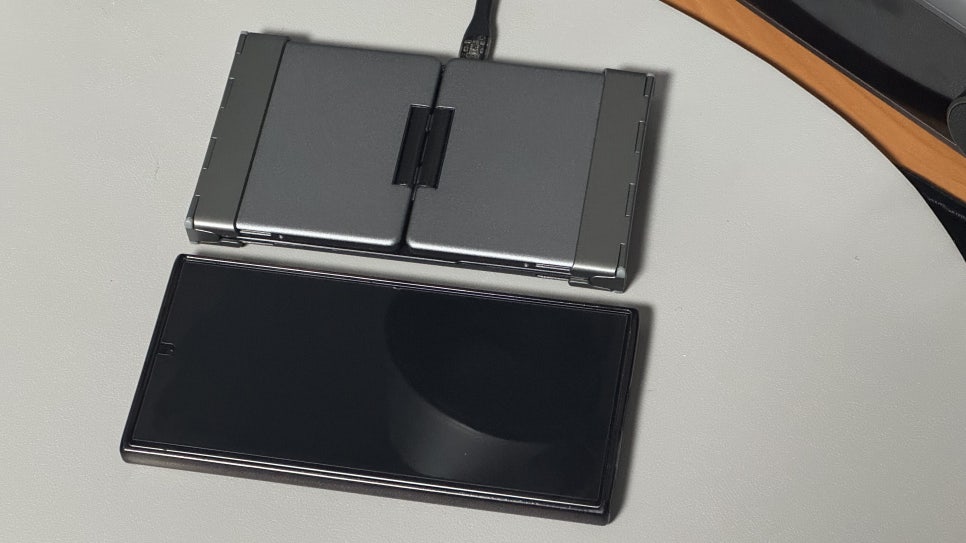
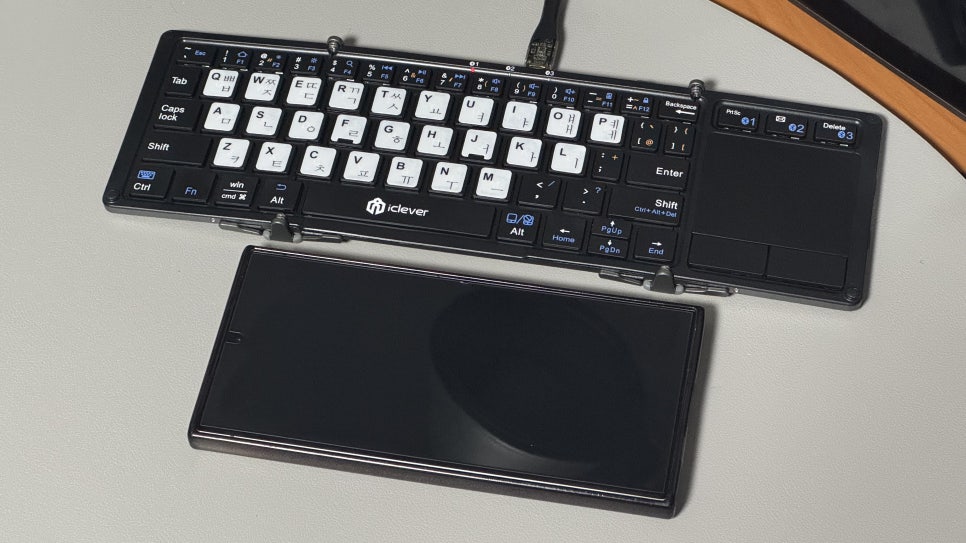
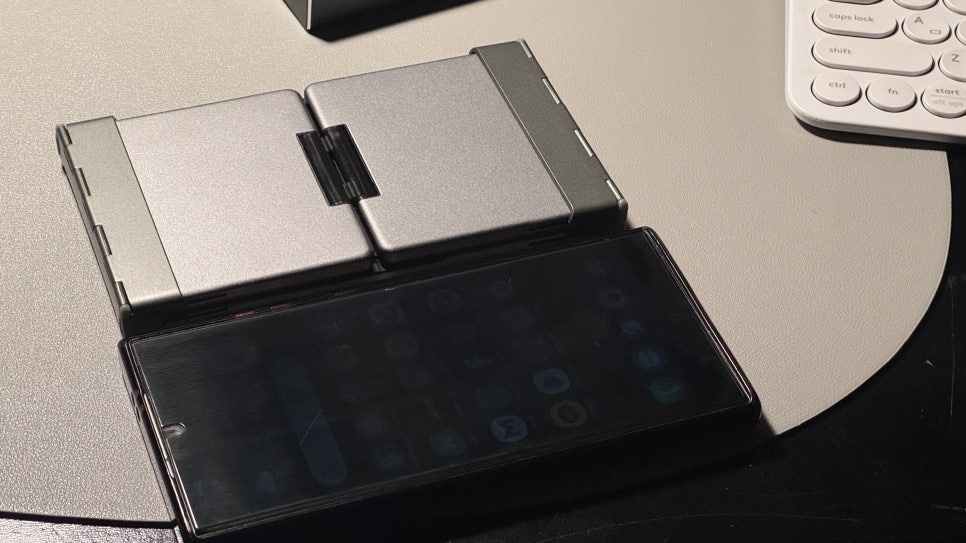
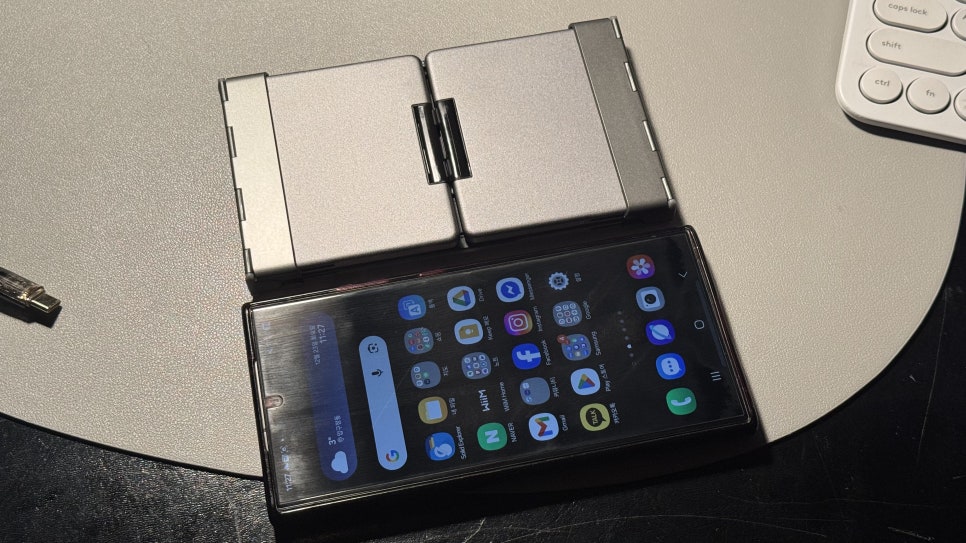
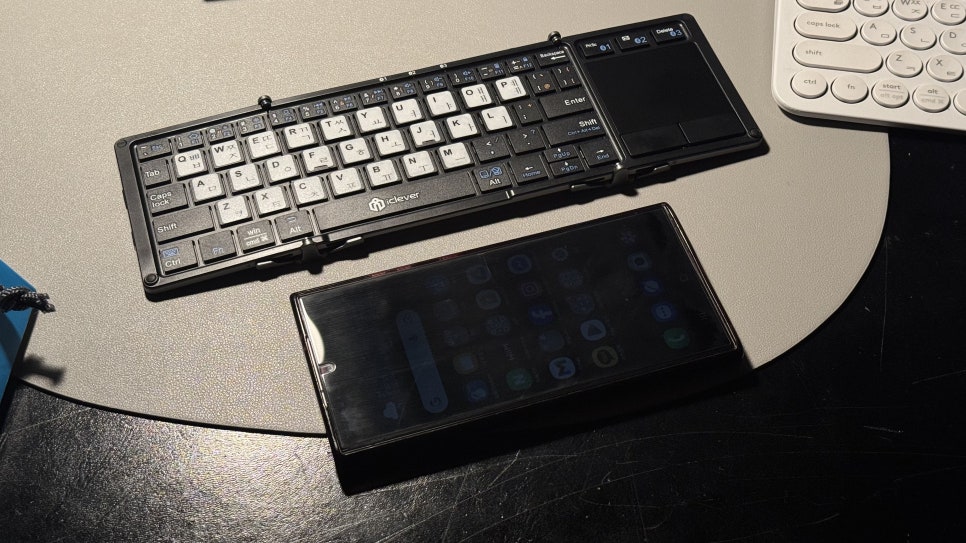
These are size comparisons between the Logitech K380, Logitech Keys to Go, and the iClever BK08.